How to Get Your Verified ID Card
1. Access My Account
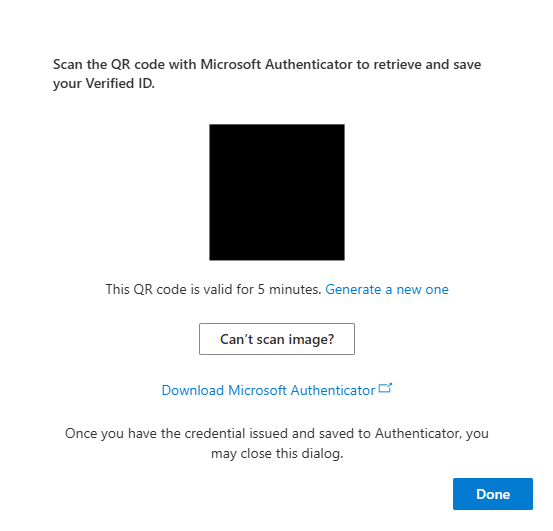
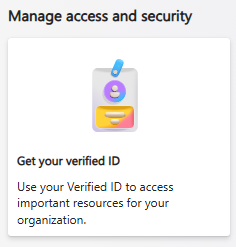
Go to myaccount.microsoft.com on your computer or another device. In the Manage Access and Security section, select Get your verified ID to display the QR code.
2. Open Microsoft Authenticator
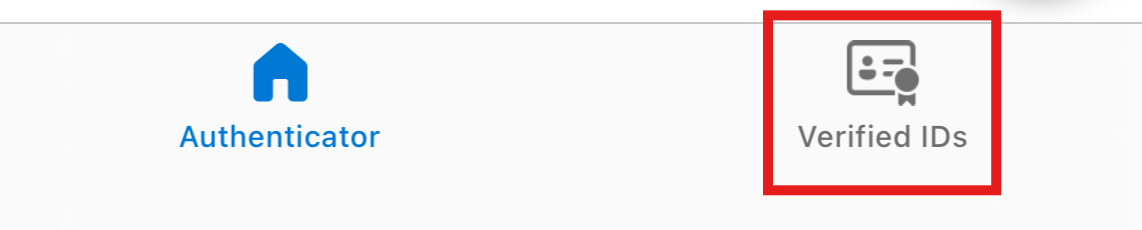
Open the Microsoft Authenticator app on your mobile device, then go to the Verified IDs section.
3. Select Scan QR Code
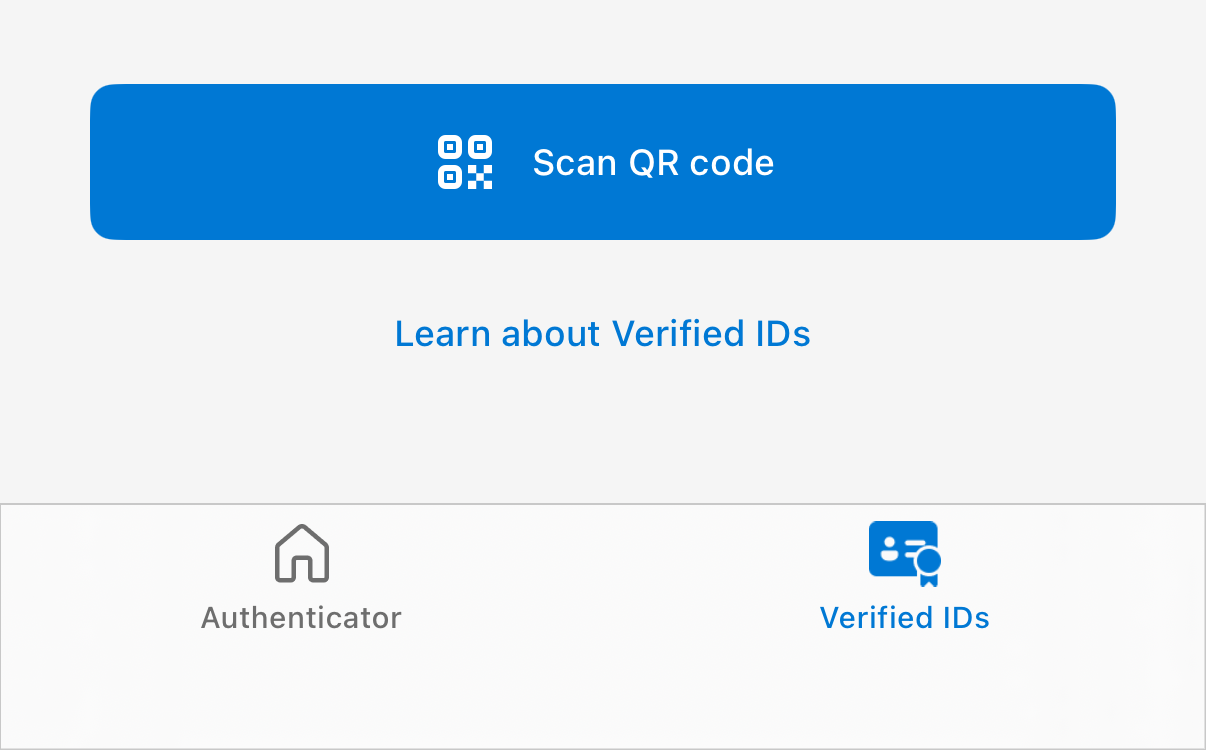
In Microsoft Authenticator, tap Scan QR Code. Your camera will open so you can scan the QR code from My Account.
4. Scan the QR Code to Assign Your Verified ID
Use your phone camera in Authenticator to scan the QR code shown in My Account. After scanning, your Verified ID will be assigned to your profile.